How to Write AI Video Prompts That Produce Usable Shots
A useful video prompt describes change over time. Instead of stacking visual adjectives, define the shot's starting state, subject action, camera movement, environmental motion, and end state.
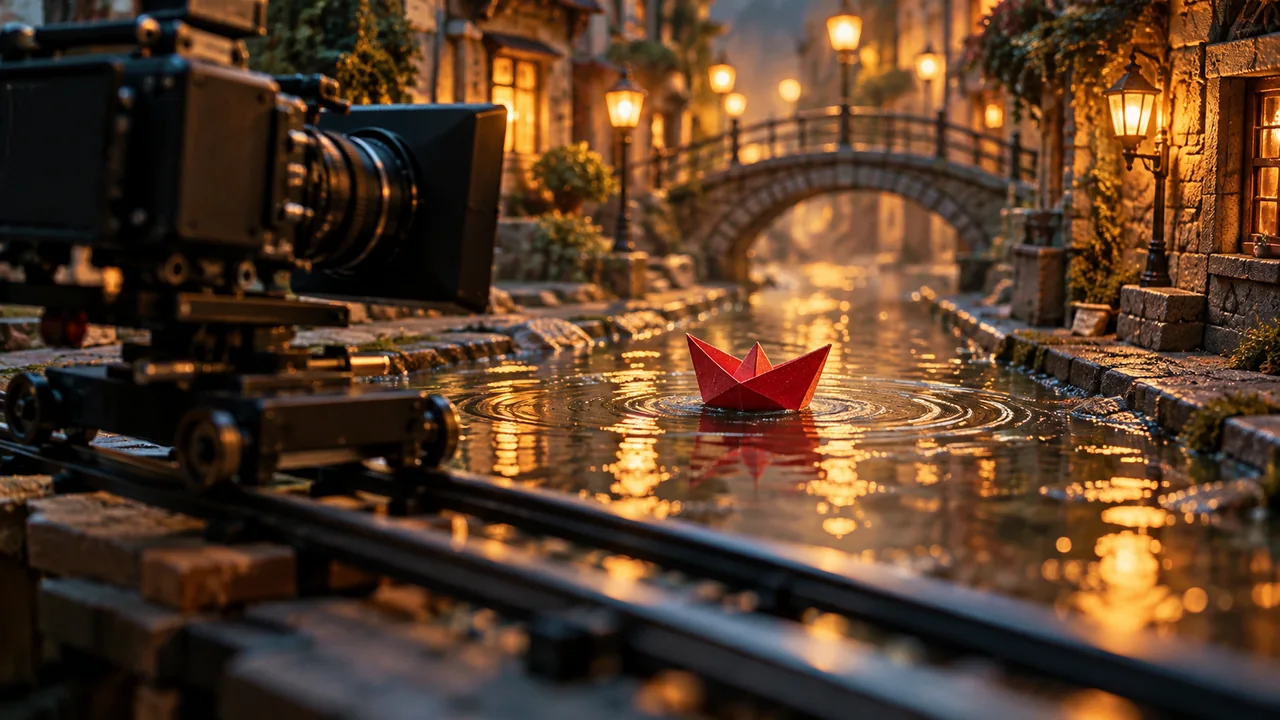
What you’ll take away
- Prompt one shot, not an entire scene montage.
- Separate subject motion from camera motion.
- Define a simple start and end state when timing matters.
- Write adjacent shots with editing continuity in mind.
A video prompt is not an image prompt with the word ‘moving’ added
An image prompt describes a frame. A video prompt must describe what changes between frames. If you spend most of the prompt on static appearance, the model has to invent the motion. That can produce drifting cameras, unnecessary gestures, or subjects that change shape as the clip progresses.
Start with the action you need for the edit. Then define how the camera observes it. Appearance can be inherited from a reference image or described briefly if you are generating from text alone.
Use a five-part shot structure
Starting state
Describe the subject and camera at the first beat of the shot.
Subject action
Give one primary physical action with a clear direction or intention.
Camera movement
Choose one main camera behavior: locked, slow push-in, lateral track, orbit, handheld follow, crane up, or another precise move.
Environment motion
Add only the motion that supports realism or story: rain, steam, dust, passing lights, cloth, crowd movement.
End state
When the cut depends on a final position, say where the subject and camera should finish.
Shot prompt example
Start on a medium three-quarter view of a rusty 1969 Mustang inside a dim barn. A gloved hand pulls the dusty tarp backward in one smooth motion, revealing the hood and grille. Camera performs a slow 20-degree lateral slide to the right while maintaining the car as the focal point. Fine dust falls through warm sunbeams; tarp fabric ripples naturally. End with the Mustang grille fully visible and camera settled at a lower front angle. No sudden zoom, no extra people, no vehicle movement.
Keep each generation responsible for one edit decision
Trying to generate a wide shot, close-up, orbit, reaction, and transition inside one short clip gives the model too many directing decisions. Generate separate shots and make the montage in the edit. This also makes failures cheaper: you replace one bad shot instead of regenerating an entire sequence.
For dialogue or character work, avoid asking for complex body movement, elaborate camera movement, and precise mouth performance at the same time unless the model and reference setup can reliably support it. Decide which element matters most to the shot.
Write prompts for the cut, not just the clip
- Match screen direction: if the subject exits frame right, the next shot should respect that direction unless the edit intentionally resets it.
- Match wardrobe and prop state between adjacent clips.
- Keep time of day, weather, and dominant light direction consistent.
- Avoid jumping camera height without a reason; it can make generated sequences feel disconnected.
- Use establishing shots sparingly. Most short-form sequences benefit from getting to the action quickly.
Diagnose video failures with motion language
If the subject morphs, simplify the action and strengthen the visual reference. If the camera drifts, state that it is locked or name one exact movement. If the shot feels lifeless, add one environmental motion cue rather than five new style adjectives. If pacing feels wrong, change the action timing or shot duration in the edit instead of forcing a complex sequence into one generation.
The editor is part of the prompt strategy
Generate clean building blocks. Use editing for timing, rhythm, transitions, text, sound, and montage. A generator does not need to solve the entire finished video inside one prompt.