Reconstruct a Broken Edit from Versioned Exports
Use review renders and change records to recover the intended cut when a timeline or project file no longer opens correctly.
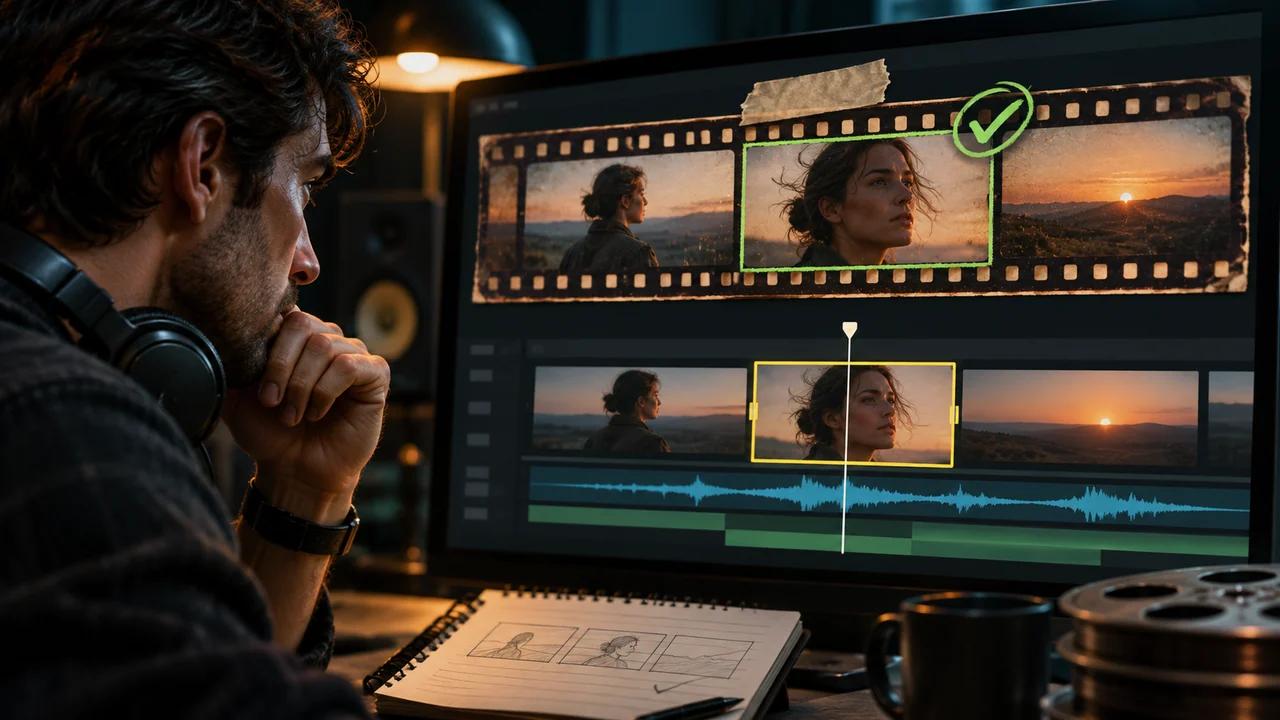
What you’ll take away
- Preserve the damaged project before recovery
- Compare exports against dated review notes
- Log every reconstruction decision
When an editing project breaks, do not start rebuilding from memory. Preserve the damaged project, collect every review export, and use the newest approved notes to reconstruct the intended sequence. A rendered video is evidence of what one version looked and sounded like, even when it cannot restore the editable timeline by itself.
Freeze the evidence
Make a copy of the project folder before opening or relinking anything. Record the editor and version, error message, missing media list, and last date the project opened correctly. Keep the original export files untouched. Sort them by actual creation date and filename, then note which ones were approved, rejected, or never reviewed.
Find the project backups and autosaves, but do not assume the newest file is the best one. It may have been saved after an accidental change. Check dated review comments, approval notes, and delivery messages for the cut that was accepted. Build a short version ledger with export name, date, reviewer status, and known differences.
Reconstruct against the reference export
Start a fresh recovery project only after preserving the originals. Import the newest approved export as a visual reference, then recreate the sequence from available source media. Compare each section against the reference, using earlier exports when notes identify a change. For example, a comment might say “restore the two-second close-up before the measurement label,” which clarifies a difference between v4 and v5.
Use the export’s audio as a guide to timing, not automatically as final audio. It may include temporary narration, unlicensed music, or a mix that was meant only for review. If the source recording is available, sync and check it against the accepted export. Confirm transitions and caption timing by watching the whole section; do not infer a precise cut from a filename alone.
For a fictional case, plant-care_review_v04.mp4 contains the approved narration and sequence, but its caption placement is wrong. A later v05 corrects captions but accidentally removes a shot. The reviewer notes show both decisions, so the reconstruction uses v05 captions and restores the missing shot from v04’s source clip.
Name and verify the recovery
Save the recovered project as a new version and add a note explaining what came from which export or source. Have a second person compare the new render against the approved reference and check claims, captions, and audio. Adobe’s Premiere Pro user guide and Blackmagic’s Resolve training cover application-specific project handling; consult the documentation for the installed version. Link the faceless content workflow guide in your handoff so the recovered file re-enters normal review.