Screen Recordings With Fictional Data
Use fictional data in tutorial screen recordings to protect privacy while keeping each interface example clear and believable.
What you’ll take away
- Create a coherent fictional dataset
- Inspect every visible surface
- Label illustrative data clearly
Make a demo dataset before recording
A tutorial should show the steps clearly without exposing a real customer, account, or private workspace. Prepare fictional data before opening the recorder. Replacing names after capture is risky because a detail can remain in a notification, autocomplete menu, browser tab, or file path.
Create a small, internally consistent scenario. For a project management demo, use a fictional company such as “Northstar Garden Supply,” a made-up contact, and sample dates. Reuse those names across every screen so the lesson feels coherent. Don’t copy a real spreadsheet and change only its title. Hidden tabs, comments, or metadata may remain.
Example: demonstrate a budget view
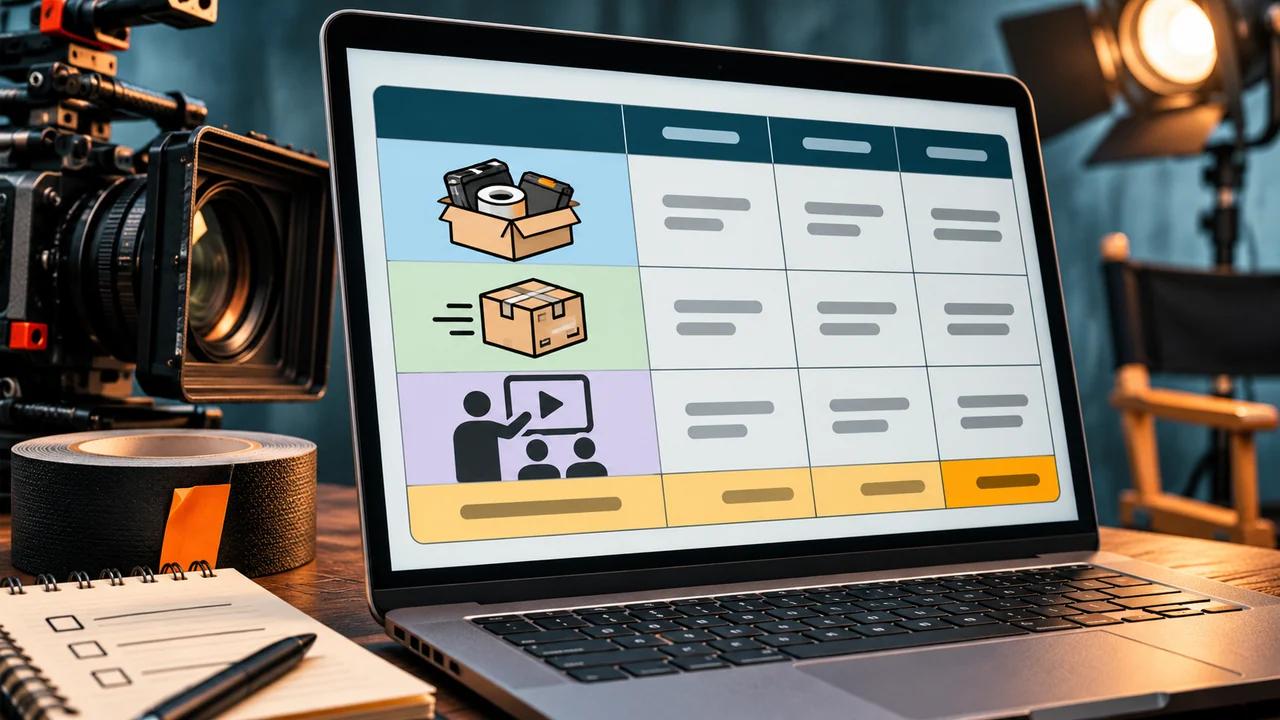
Build a sample file with three categories: supplies, shipping, and training. Set simple illustrative amounts and title the file “Sample Budget – Fictional Data.” Use a fictional date range. Plan the screen action: open the sample file, select the month, filter one category, and point to the total. Zoom or crop so viewers can read the relevant controls.
Don’t leave unrelated browser tabs or notifications visible. If the lesson depends on current interface behavior, verify it in the product and link to vendor documentation. Menus change over time, so an old recording may no longer match.
Privacy preflight
- Close personal email, messaging, and password manager windows.
- Turn off desktop notifications for the recording session.
- Check account avatars, workspace names, URL paths, bookmarks, and recent files.
- Replace real names, emails, addresses, IDs, and transactions with fictional values.
- Inspect the final export around clicks, menus, and window changes.
Blur is a backup, not a dataset plan. It can miss text at a panel edge or become unreadable when the interface moves. If you must show a real interface, capture only the area needed and review the final result before publishing.
Tell viewers what is illustrative
Put a note in the opening or description: “This demo uses fictional sample data.” If example numbers are invented, don’t describe them as a real result. When the workflow can be reproduced with a sample account, use that account consistently across the full tutorial.
Use the faceless content workflow to make a repeatable capture checklist. For a general overview of privacy considerations, see YouTube’s privacy guidance.
For software with a public sample project or sandbox, start there and still inspect the display name and notifications before capture. A demonstration account can contain preset content that looks real to an audience. If you create values yourself, make them visibly plausible but avoid using an actual address, phone number, or account identifier. Keep the sample file in a dedicated folder so it cannot be confused with production or client work during recording.
Keep a source note for the product steps you demonstrate. If a label or menu name differs between your version and the viewer’s, mention the version shown so viewers can orient themselves. This small note reduces confusion when an interface update changes the tutorial after publication.
Sources & further reading
Put it into practice
- A Repeatable Faceless Content Workflow: Idea to Published Video
- How to Avoid Generic, Mass-Produced AI Videos