Make Your YouTube Title and Thumbnail Tell One True Story
Check that the packaging creates curiosity while accurately reflecting the video viewers receive.
What you’ll take away
- Write the actual takeaway first
- Make title and thumbnail add different information
- Remove implications the video cannot support
A strong title and thumbnail can create curiosity without creating a false expectation. Start by writing the video’s actual takeaway. If the lesson teaches how to restore an earlier spreadsheet copy from version history, packaging should not suggest every permanently erased file can be recovered.
Draft the promise in plain language
Finish this sentence: “After watching, the viewer can ___.” A useful answer is concrete: “check version history and restore an earlier spreadsheet copy.” A weak answer is “fix any spreadsheet problem.” The concrete version gives you room to make an appealing title without overstating what the video covers.
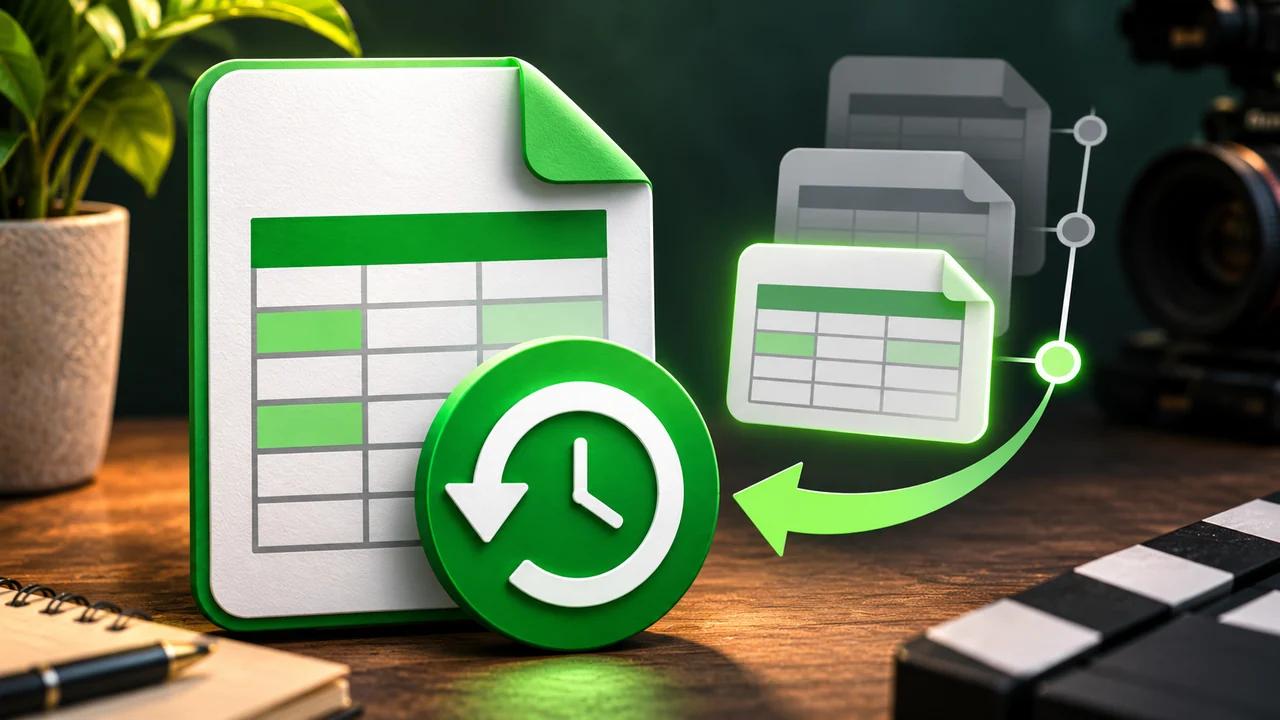
Try “Recover a Spreadsheet with Version History” as a working title and a thumbnail showing a document with a restore arrow. They reinforce the same subject but carry different details. The title names the method, while the image signals recovery. The thumbnail text prompt route can help generate concise options.
Use a title prompt with guardrails
A YouTube title generator can produce options quickly, but a prompt should anchor language in the lesson rather than invite generic hype. Copy and adapt this title prompt:
You are a YouTube title generator. The video teaches [specific audience] how to [demonstrated outcome] using [method]. Generate 12 concise title options. Keep each claim within the lesson, avoid guarantees and unsupported numbers, use natural wording, and make each option distinct. Return only the titles.
For the spreadsheet example, reject options that imply recovery from any device or any deletion. Prefer a title that names the method and describes what the tutorial demonstrates. Check every option against the lesson before choosing one.
Run the pair test
Read the title and view the thumbnail together. Ask what a reasonable viewer would expect in the first minute and what they will be able to do at the end. Revise if the title says “Free” while the tutorial uses a paid feature, the image shows a completed dashboard while the lesson only plans one, or a thumbnail implies a dramatic before-and-after absent from the footage.
You do not need to remove intrigue. Make the interesting part specific. “The Spreadsheet Restore Setting Most People Miss” invites attention while pointing to a lesson you can demonstrate. If the video covers several recovery routes, make that scope clear.
Ground AI visuals in the lesson
Generated imagery may depict an interface or result that does not exist. Treat visual details as factual claims. Keep stylized illustrations clearly illustrative. If you show a product screen, use a real capture or verify every label. Compare the thumbnail against the opening and outline before publishing.
YouTube’s official title and thumbnail test guidance explains the available experiment. For channel topics that support accurate promises, see the content pillars guide.
Sources & further reading
Put it into practice
- YouTube AI Content: Disclosure, Reused Content, and Monetization
- How to Avoid Generic, Mass-Produced AI Videos